Set up your YubiKey
Protect your digital life from phishing attacks. Let’s get started.
Have your YubiKey and your spare key ready for setup. Although it’s not required, we recommend doing your setup on a computer.
For the best protection, you should set it up with each of your online accounts. Go to the next step to explore YubiKey-compatible services.
Are you setting up a new YubiKey Bio? Make sure to enroll your fingerprint before following the steps below. Please note, fingerprint enrollment is only applicable to the YubiKey Bio Series.
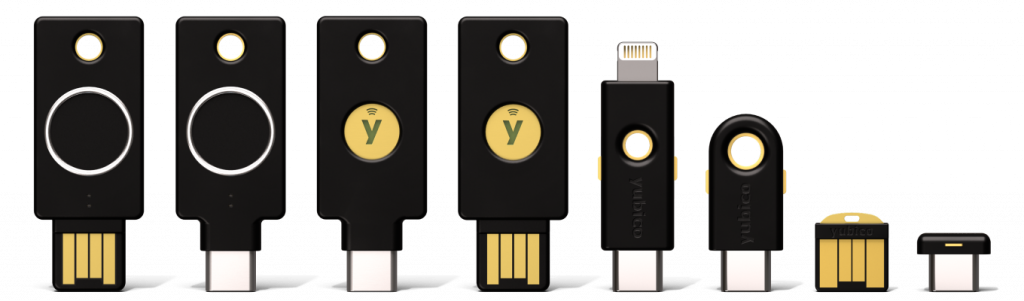
If you are not sure which key you have, check here.
Fingerprint enrollment
Enrolling Fingerprints on your YubiKey Bio varies on whether you are running Windows, macOS, Linux, or Chrome OS. You can enroll up to five (5) fingerprint templates to your Key to ensure access and are also able to remove and re-enroll individual templates if an issue arises.

Windows 10 and Windows 11
Use Windows Sign-in options. Click the button below to open the settings.

macOS / Linux / Chrome OS
Use Chrome 90 or later. To enroll your first fingerprint click the button below. For additional fingerprints see the enrollment video.
Desktop Yubico Authenticator
Desktop Yubico Authenticator 5.1 and later enables you to enroll and manage fingerprints on all supported operating systems. Use the Yubico Authenticator for Desktop on your Windows, Mac, or Linux computers. Note that on Windows 10, the Yubico Authenticator must be run in Administrator mode. Click the button below to download Desktop Yubico Authenticator.
1. Choose a YubiKey-compatible service
First, choose an online service that supports YubiKeys, such as Microsoft, Google or Dropbox.
Browse our Works With YubiKey Catalog to find all of the compatible services and view setup tutorials for popular services.
Keep in mind that it is up to each service on how/if they support YubiKeys.

2. Identify your account’s security options
Now that you’ve chosen a service, let’s check which security protocols the account supports.
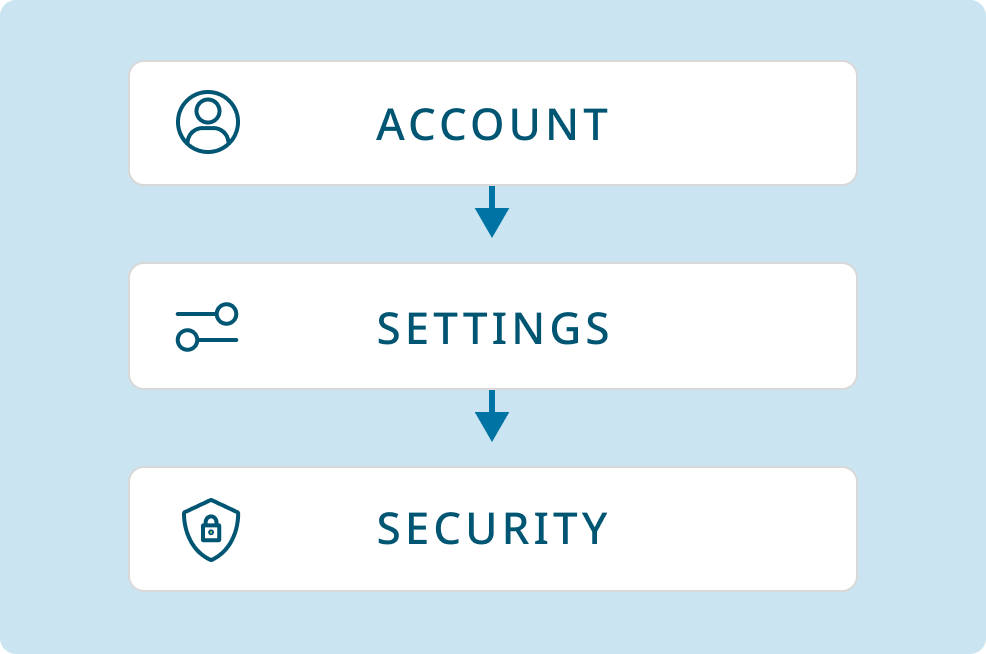
1: Log in to your account and go to the security settings.
2: Look for one of the following:
- Two-Step Verification
- Two-Factor Authentication
- Multi-Factor Authentication
3: Within the sections listed above (or on their own), find one or more of the following:
- Security Key
- Passkey
- Authentication app (this may go by other names)
Every service is a little different, so the names might vary. Once you have a good idea of what security options your account supports, you’re ready to follow the instructions in the next step.
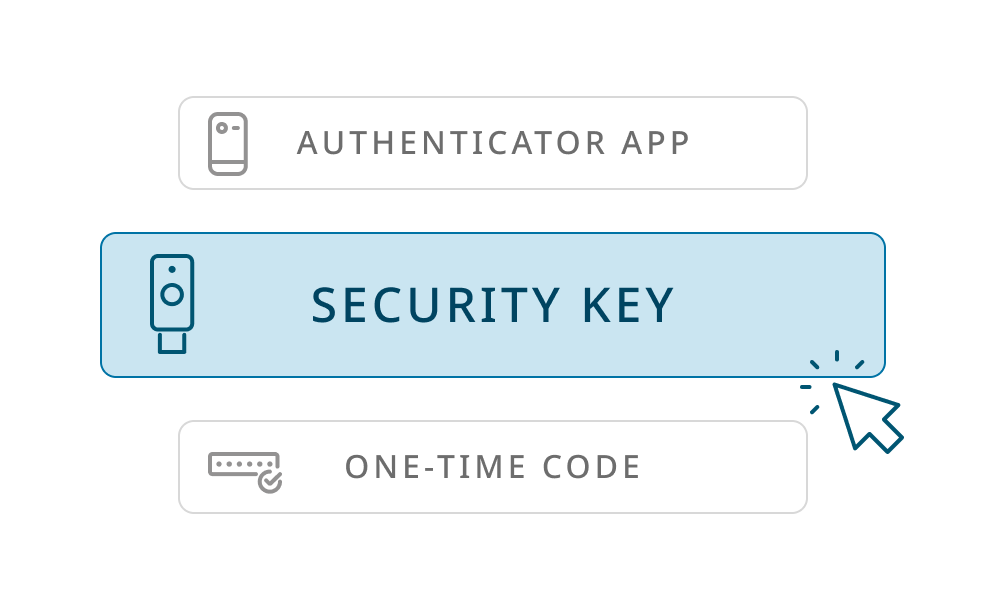
Differences between security key MFA, authentication apps, and passkeys

Security Key MFA uses physical devices and offers a high level of protection against phishing. It’s considered one of the most secure forms of MFA.

Yubico Authenticator as MFA is a software-based solution that relies on generating one-time codes. While it provides good security, it may not be as resistant to phishing as physical security keys. Unlike other Authenticators that store codes on vulnerable devices, our Authenticator ensures maximum safety by securely storing authentication codes on the YubiKey itself. Trust in a solution that prioritizes your security, setting us apart as the superior choice for safeguarding your digital assets.

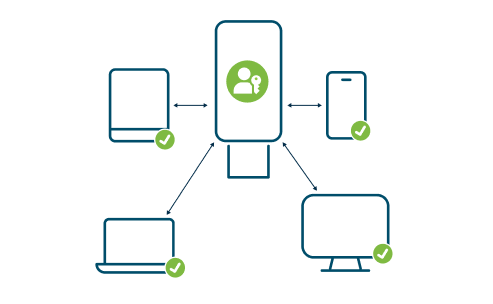
Passkeys work using public key cryptography and proof that you own the credential is only shown to your online account when you unlock your phone. To sign into a website or app on your phone, you just unlock your phone — your account won’t need a password anymore.
3. Adding your YubiKey
Begin by plugging your YubiKey into a USB port.
Activate the NFC on your key: If your YubiKey supports NFC and it is your first time using it, plug it into a powered USB port for at least three seconds to activate the NFC function. Learn more here.
Set up your spare: We recommend setting up both your primary and spare YubiKeys at the same time.
Keep in mind that every service is a little different. The steps below are a general guide, and the setup process may vary depending on the service’s unique security settings.
OUR PREFERENCE
Option 1: Security key MFA
1. Log in to your chosen service and navigate to your account’s security settings.
2. Look for the option to add a “Security key.”
3. Follow the instructions given by your service to add a security key, including any instructions prompted by your browser.
NEW
Option 2: Passkey
1. Log in to your chosen service and navigate to your account’s security settings.
2. Look for options to add a “Passkey.”
3. Your browser will prompt you to create a passkey using a variety of methods. Make sure to select the option that is named or mentions “Security key.” If this is not chosen, you could accidentally create a passkey that is not protected by your YubiKey.
Follow the steps prompted by your browser once the passkey option is selected. Learn more about passkeys.
Note: certain services may prompt you to create a PIN or verify the PIN if one is already set. This is the FIDO2 PIN and it can most easily be viewed or set using the Yubico Authenticator.
WIDELY SUPPORTED
Option 3: Authentication app
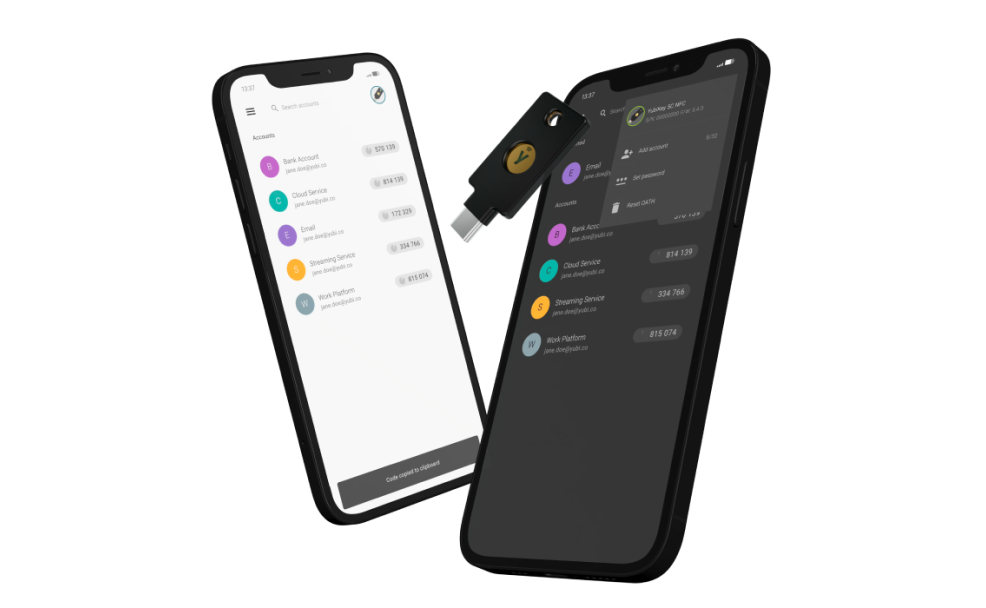
1. Download the Yubico Authenticator app.
2. Log in to your chosen service and navigate to your account’s security settings and find “authentication app.”
3. Open the Yubico Authenticator and find “add account”.
4. Scan your QR code provided by the service (make sure the QR code is clearly visible when you scan).
5. Save this QR code. You will need it to register additional keys.
4. Spare keys
A spare key ensures you won’t lose access to your accounts if you misplace your primary key. We recommend setting up both your primary and spare keys at the same time.
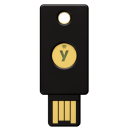
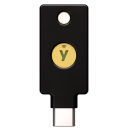
A spare key can be a different form factor than your primary key, as long as it’s from the same YubiKey series.
5. Important tips

Login to test your YubiKey
Now that you have set up your YubiKey, try logging in. You should be prompted for your YubiKey.
If not, something may have gone wrong, or the service might be using “Trusted Devices.” Some services have a “Trusted Devices” feature that lets you skip verification codes and Security Key use on recognized devices.

Keep it safe
Treat your YubiKey like you would your house keys. Keep it in a safe place and do not share it with anyone. It is your personal security hero!
Software

Yubico Authenticator
The Yubico Authenticator stores your unique credentials on a hardware-backed Security Key, so you can take them with you on any device.
This means no more storing sensitive data on your phone and leaving your accounts vulnerable to cyber criminals. With the Yubico Authenticator, you hold your security in your hands.
Additional applications, like our Yubico Authenticator are generally not needed unless components like key configuration or authenticator codes are required by the service/account you intend to secure.
Please note that, in many cases, it is not necessary to configure your key prior to using it with online services. It is recommended that you make a configuration change only if instructed to do so.
Frequently asked questions
Yes. To veryify your YubiKey click here.
2FA is a method to confirm a user’s claimed online identity by using a combination of two different types of factors. Factors used for 2FA include something that you know (e.g. password or PIN), or something that you have (e.g. a security key or phone) or something that you are (e.g. facial recognition). For more detailed information, please visit our 2FA glossary page.
A single YubiKey has multiple functions for securing your login to email, online services, apps, computers, and even physical spaces. Use any YubiKey feature, or use them all. The versatility of the YubiKey requires no software installation or batteries and therefore is ready to use directly out of the package. Simply login to the service, add your YubiKey, and enjoy a more secure online experience.
We always recommend securing your accounts with an additional YubiKey. However, if you do not have a spare Key and lose your YubiKey, we encourage you to have another form of 2FA added to your accounts to prevent being locked out of your accounts. Please note that if you do end up being locked out of an account, you will need to contact the service for account recovery help.
Yes, we at Yubico always recommend having more than one YubiKey. This way one key can be used as a primary Key, and the other can be used as a Spare Key. The importance of having a spare Key is well established. We have them for our most valuable assets in life – our houses, our cars, and our PO and safety deposit boxes. Not surprisingly, we also need spare keys for our digital devices! Having a spare Key gives you the assurance that if you lose your primary Key, you will not be without access to critical accounts when needing them most. In other words, with a spare Key you have no need to fear being locked out of any accounts, and no need to go through a lengthy recovery and identity verification process to regain access to each account.
To protect your security during shipping, NFC is temporarily disabled on your YubiKey. Activating it is easy: plug your YubiKey into any USB power source, like a computer, for at least 3 seconds. Once powered, NFC will be activated and ready to use. You can find more details here.
After 3 unsuccessful attempts to authenticate using biometrics your YubiKey Bio will cease to prompt for the fingerprint and will fall back to PIN and regular touch, the primary authentication mechanism. The blocked biometrics state is indicated by a constant slow flashing of the amber LED, the one closer to the USB-contact.
To unblock biometrics, do the following:
Note that if you are not in the biometrics blocked state, the browser will ask you to authenticate using biometrics.
You can obtain a copy of the applicable product warranty and terms and conditions at https://www.yubico.com/support/terms-conditions/ . You may contact Customer Support if you need assistance determining which terms and conditions apply to your product or service.
Yubico provides a guide with images of the official packaging to help verify authenticity. You can view the official packaging details here.
Check out our helpdesk center where there are tons of knowledge base articles to help arm you with the necessary info to better your online security.
Are you still having trouble setting up your YubiKey? Contact support for personalized help.